


 read guide
 buy now
 Read this article also:
AGOV-specific FAQ and Support
Below is a list of frequently asked questions from our clients using AGOV with our security keys. This list will continue to grow based on received tickets and inquiries.
Please note: we do not have administrative access to the AGOV platform; our support is limited to using our FIDO2 keys.
Table of Contents
- • The system asks to touch my FIDO2 key, but when I click on the screen nothing happens.
- • When setting a PIN using Chrome, it gives me Error 55. What does it mean?
- • I try to log in with my Token2 key, but AGOV says this key is not familiar or not recognized.
- • I plug in the key and nothing happens. Is it defective?
- • I have a USB-A key, when I plug it in, LED is not lighting on.
- • Why do I see the error message "Your security key does not meet our security requirements" when trying to register a platform passkey in the AGOV portal?
- • How can I make sure my passkey is stored on the USB security key?
- • What happens if I reset my FIDO2 security key or forget its PIN?
- • My problem is not described in this FAQ, how to seek support?
By "touching", they mean physically touching the button or sensor of the key. It is usually a golden area near blinking LED. In most cases, if the key's LED is blinking, it is prompting to touch that sensor.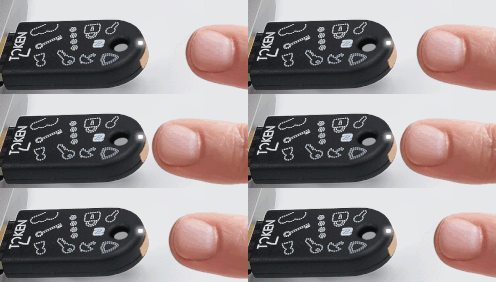
This means the PIN you selected is too simple. Some keys, like Token2 PIN+, recommended for AGOV, do not accept simple PINs. For numeric PINs, the minimum length is 6 digits. Sequential numbers (such as 123456 or 654321), repeated digits (such as 111111), mirror or palindrome patterns (such as 321123 or 69233296), and PINs containing more than three identical digits (such as 111123 or 990000) are not allowed. For alphanumeric PINs, the minimum length is 10 characters and the PIN must include characters from at least two of the following categories: uppercase letters, lowercase letters, digits, and special characters.
You cannot log in with a newly purchased security key, it has to be associated with your account first. Before logging in, follow the registration flow first.
This is a FIDO key, not a regular USB drive. Plugging it in will not display anything on the screen. The key only responds when there is an authentication or registration request. The only thing to check is that the LED on the key lights up when you plug it in.
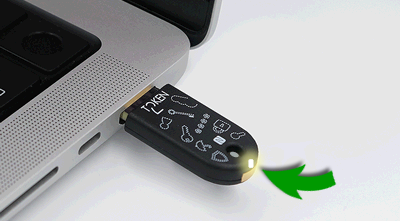
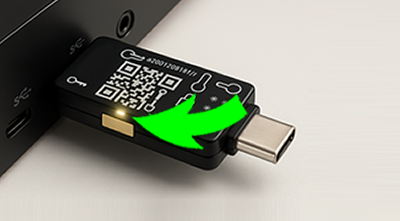
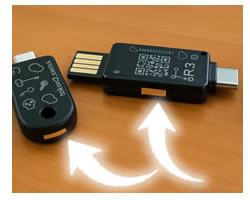
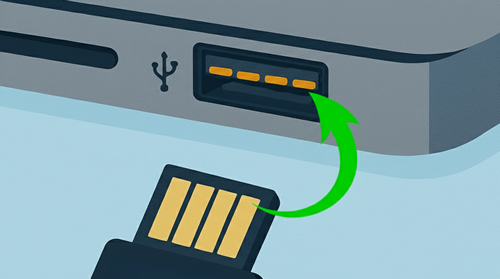
Some of our keys have PCB-based USB-A port and it is possible to insert it wrongly, make sure the contacts on the key are facing contact of the USB port.
This error typically occurs in one of the following cases:
1) You are trying to use a security key without a PIN configured. A PIN is mandatory for AGOV.
2) You are attempting to register a platform authenticator (for example, a built-in device passkey provider or password manager) instead of a physical security key. This is a common mistake. Please refer to the next question for more details.
A passkey (the credential record that allows you to access your AGOV account) has to be stored on a USB FIDO2 security key.
However, in many cases, systems default to saving it elsewhere (this is not fully supported by AGOV, so it's better to make sure the credential is saved on your physical key).
You'll know it's stored on the key if its LED blinks and the system asks you to touch it during setup.
If the LED does not blink and no touch is requested, the passkey is being stored elsewhere—such as a password manager, your device via TPM or Windows Hello, or a linked iPhone or Android device.
To store it on the USB key, choose the option with a USB key icon.
See examples below: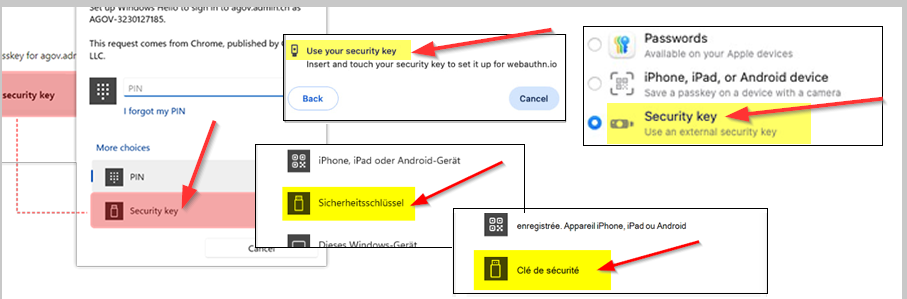
Resetting a FIDO2 key or entering the wrong PIN 8 times will permanently erase all credentials on the key. If this is your only way to access your AGOV account, you will lose login access. Always register an alternative method, such as another security key or a registered device. If you lose access, restore your account here: AGOV Account Restore. Handle your key carefully and avoid repeated wrong PIN entries.
We are here to help, just send an email to [email protected]
This is a specialized minisite created specifically for AGOV users, available in three languages and focused on the main products needed for AGOV login security. If you want to check our full range of products or consult the guides for other systems, visit our main website: www.token2.ch